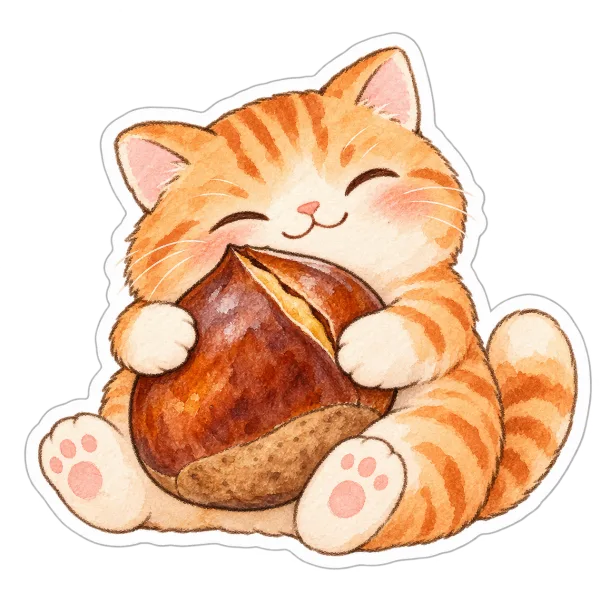
ChatGPT Images 2.6 makes GIFs. Here’s how to turn your own stickers into animated ones
On November 4, 2026, OpenAI released ChatGPT Images 2.6. For anyone who makes stickers, the news is in one word: GIFs. The model can now draw a short animation instead of a single picture.
This post covers what changed, when ChatGPT is the right place to make a GIF, and how we use the same model in Tapeleaf to turn stickers you made into animated stickers for journal pages and chats. We will also be plain about the limits.
What ChatGPT Images 2.6 added
In ChatGPT itself, 2.6 brings two things: it can make GIFs, and it can work from reference images you give it. For developers, OpenAI released two models in its API at the same time, one built for speed and one for detail.
- GIFs, made in ChatGPT from a prompt or a picture.
- Reference images, so you can show it what you mean instead of only describing it.
- gpt-image-2.6-flare in the API: the fast one.
- gpt-image-2.6-sunburst in the API: the one that goes for detail.
- GIF output from the API: ask for output_format "gif", from 2 to 64 frames, each on screen for 20 to 2000 milliseconds.
That last line is the one that matters for stickers. A sticker that moves does not need a long clip. It needs a dozen frames or so, a loop that joins up with itself, and a background you can see through. The API can now hand back exactly that kind of file.
When ChatGPT is the right tool
If you want a GIF of almost anything, ChatGPT is a good place to start. Describe it, or give it a photo, and it will make one; then you can ask it to change frames until it looks right. For a one-off reaction, a birthday joke or your dog doing something silly, that is hard to beat, and you do not need anything else. Our step-by-step guide to making a GIF in ChatGPT shows how.
What a chat is not built for is a set of stickers in one style that you keep, reuse and stick on pages. That is the gap our sticker maker fills.
How animated stickers work in Tapeleaf
Our sticker maker already draws whole sheets of die-cut stickers from a photo or a sentence. Animated stickers start from one of those sheets and take five steps:
- Make a sticker sheet. Add a photo or describe what you want, and the maker draws a full sheet of stickers with white borders. A free account can do this part.
- Split it. Tap the split icon, and the sheet comes apart into single stickers.
- Pick. Choose one sticker, a few, or all of them.
- Animate. Tap Animate. Each sticker you picked is drawn as a short loop by GPT Image 2.6 Flare, the fast model.
- Use it. The animated sticker is saved in your account. Download it or share it as a GIF, or put it on a journal page.
You can try the first step right now, without signing up, on the animated sticker maker page or in the sticker maker.
What you get
- A see-through background, so the sticker keeps its own shape on a page or in a chat instead of sitting in a box.
- The white die-cut border, kept in every frame, so it still looks like a sticker.
- A short loop: about twelve frames, roughly 1.2 seconds, made so the last frame runs back into the first. Pixel-art stickers move in eight frames, like a game sprite.
- A GIF when it leaves. It is stored in your account as an animated WebP, but most chat apps, WeChat among them, take GIFs, so downloading or sharing gives you a GIF.
The honest limits
Animating is a members’ feature, on any paid plan: Lite, Plus or Pro. Each animated sticker costs 16 credits. If an animation fails, those credits go back to you. On a free account you can still make sheets and use the stickers as still ones; if you open the split view, the stickers show greyed, with a way to the plans.
The loops are short on purpose. This is a sticker that blinks or waves, not a clip with a story. And it animates stickers, not photos: to animate a photo, turn it into a sticker sheet first.
Tips for stickers that animate well
We ask the model for one small, gentle motion that could loop, and to keep the pose. The body stays where it is; nothing stands up, turns around or climbs out of a blanket. In practice, that means some stickers come out better than others:
- One clear subject. A single cat, cup or flower moves better than a cluster of tiny pieces.
- Things move the way they could. A heart beats or bounces, a leaf sways, a drink steams, a bow flutters, food wobbles.
- Animals and people move a small part: a blink, a nod, a tilt of the head, an ear, a tail, a paw or a hand.
- No new faces. An object stays an object; the model is told never to give it eyes, a mouth, arms or legs it did not already have.
- Simple outlines. The white border has to stay whole in every frame, and a clean edge helps it do that.
If a sheet has a mix, start with the sticker that has the clearest subject. Small groups, like three hearts in a row, stay the same number of things, but they move less convincingly than one.
If you already have a sheet you love, split it and try the sticker you would most like to send to a friend. If not, make a sheet first: the still stickers are yours either way.